In this article I will explain 'How to install Telnet server in Linux operating system?' and how does telnet works in Linux. 'How does a client uses Telnet in the terminal?' So to learn this please read all steps very carefully. I already posted an article on 'How to configure telnet on a Cisco router?' Both topics are different from each other. But one thing is the same here, that is Telnet. So In both topics, we have to understand the work of telnet. Because we can't do any of these without the knowledge of telnet.
First of all, we will get some information about Telnet. Let's learn these basics of Telnet for Linux Os
Que. What is Telnet?
Ans. Telnet is a remote login program that helps us to manage any device. It is a command-line interface that helps to communicate with any device.
Que. How to use Telnet in different OS?
Ans. To use telnet in different operating systems like Linux or windows, you should type telnet followed by a space and the IP address of the server telnet machine. After pressing enter you can easily access telnet on your operating systems.
Que. How to access Telnet in the Operating system?
Ans. Operating systems like windows, you can access it through a command prompt. And in Linux, you can access it through the terminal.
Que. What are the requirements to access the Telnet Client-Server?
Ans. Telnet must be configured in one of your operating systems either Linux or windows. So you require at least 2 systems to access telnet one should be your telnet server and the other should be your client. If you haven't configured Telnet then you can't access the telnet server.
Let's learn how to configure Telnet Client-Server in Linux Operating System.
Step1. Install packages of Telnet through this command.
[ root@localhost ~]#yum install telnet* -y
After running this command you will see a screen like shown in the images below.
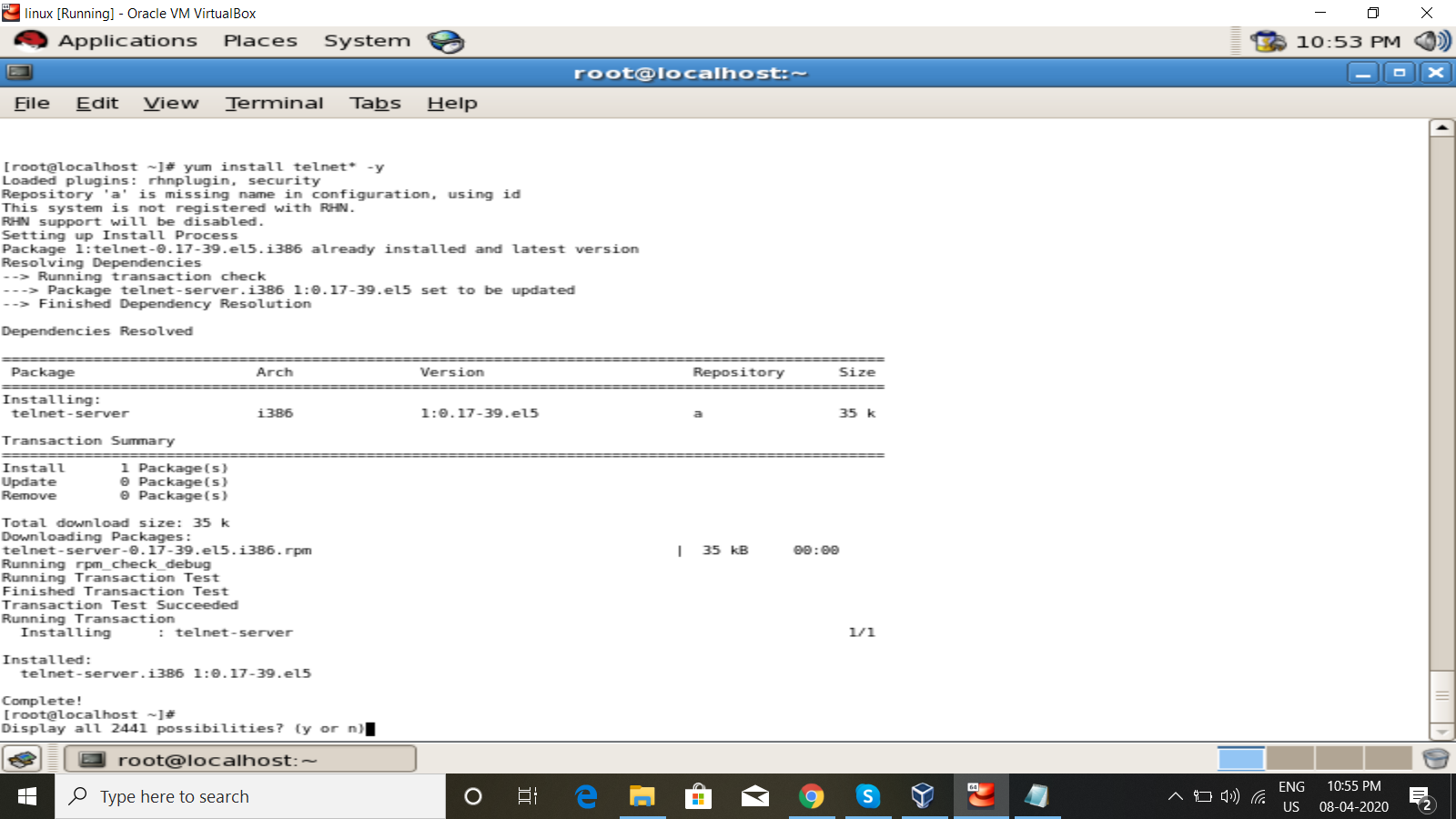
Now you have to install Telnet packages on your Linux system. After installing it, when you will check on other Linux or Windows systems that it works or not. Then you will find that it would not work for the client. But you don't need to worry. Because in the default directory, the function of telnet remains disable=yes. So we have to enable it manually by typing no instead of yes. Lets' do it -
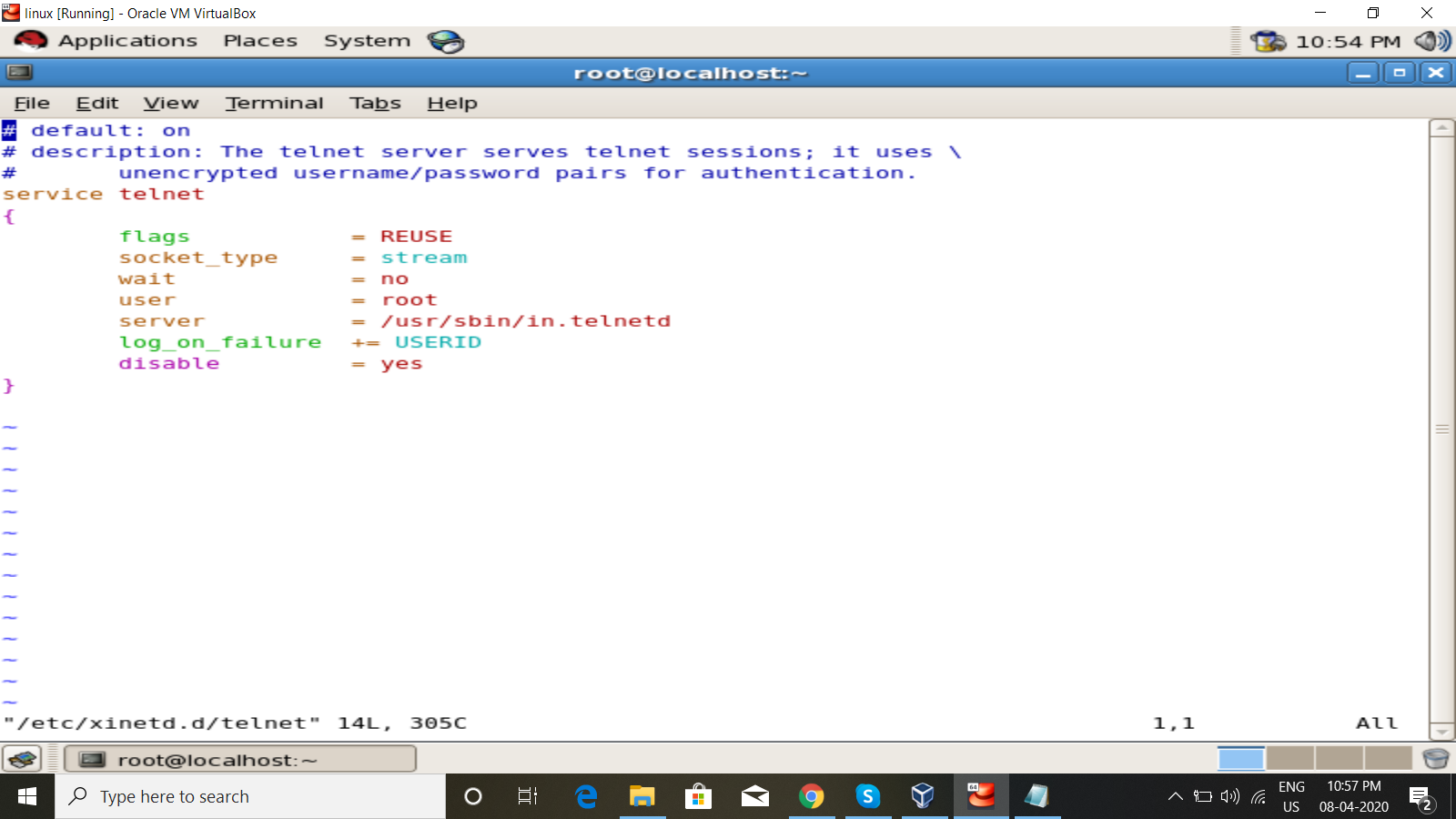
Step2. Go to the Default directory of Telnet and enable it.
[ root@localhost ~]# vim /etc/xinetd.d/telnet

After running this command you will see the screen of your system shown in below image.
In the image you can see disable = yes.
Here we have to delete yes and type no instead of yes (disable = no.) and then save this file without making any other changes.
Step3. Turn off Linux firewall
[ root@localhost ~]#iptables -F
[ root@localhost ~]#setenforce 0 Turn off firewall of linux System
Step4. Start services of xinted.
[ root@localhost ~]#services xinetd restart
[ root@localhost ~]#chkconfig on
(To permanently turn on the xinetd services.)
 Turn on xinetd Services
Now you have successfully configured the Telnet Client system on Linux Operating System. You can check logging through another Linux system. Go to the terminal of other Linux system and follow commands given below -
[ root@localhost ~]#telnet 192.168.XX.XX ( IP address of Telnet server)
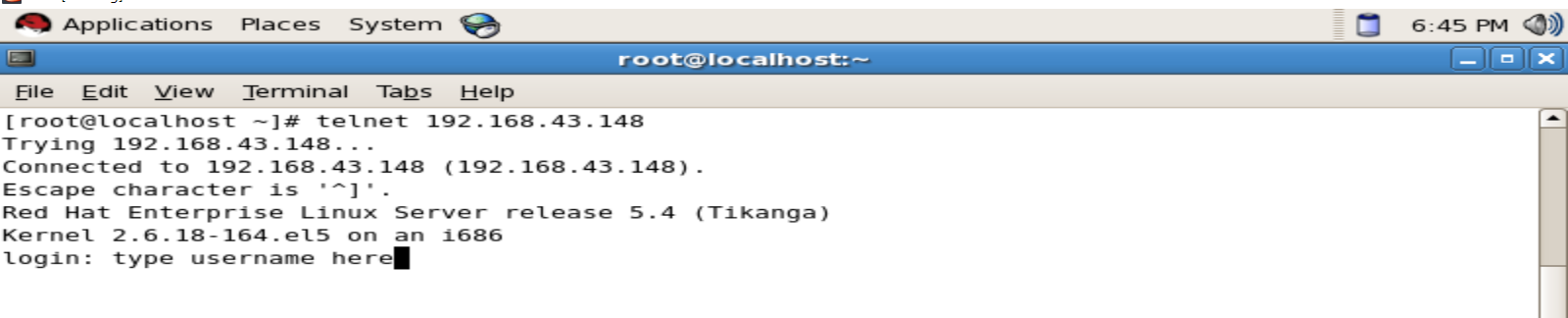 Login on Telnet server on other Linux systems,
Note - The firewall of other Linux machines must be turned off. Otherwise, you can't access telnet on your system.
Que. How to access telnet on windows?
Ans. 1. Go to start menu - control panel - Turn windows features ON of OFF - check the Telnet Client.
 Turn On Telnet client in windows
2. Turn off the firewall of windows.
Note - If your firewall will be turned on, it will not allow you to access telnet in your windows system.
If your Firewall is On then it will show you screen like shown down -
 Accessing Telnet while firewall is ON[/caption]
3. Open Command Prompt window and type
c:\Users\deepak>telnet 192.168.XX.XX ( IP of Telnet Server)
 Command Prompt Window
hit enter ( you will get a screen something like shown in the picture below.
 Telnet Login Screen on Command Prompt
Now fill in user details like username and passwords.
It is all about installing and configuring telnet in Linux. Here we learnt 'How to install Telnet?'. How to enable telnet from its default directory. And how to access telnet in windows operating system through command prompt. Guys if still you have doubt or any query with this post then don’t hesitate to contact me. And if you have any suggestions for me then please write to me the comment box. If you like my posts please share it with your friends.


0 Comments